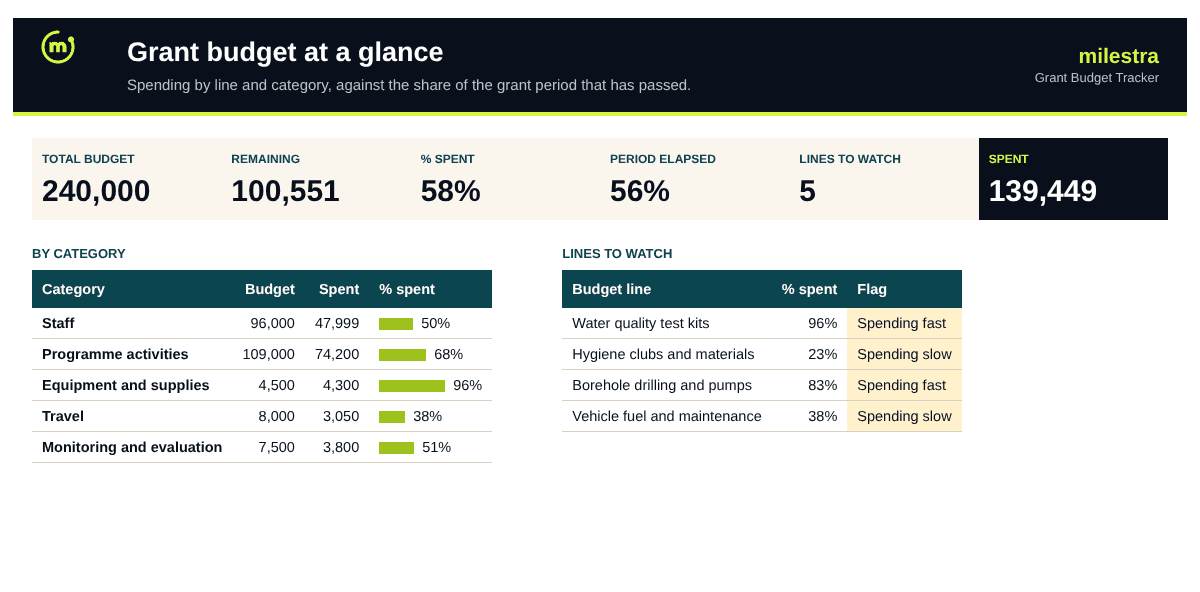
Free grant budget vs actual tracker: spot under- and overspending early
Funders rarely mind a variance you explained in March. They mind the one they discover in the final report. This tracker compares every budget line's spending with how much of the grant period has passed, so you see a line running fast or slow months before the report is due.
Excel · 5 sheets
Grant budget vs actual tracker
Log every expense against its budget line and see early whether a grant is running fast, slow or over budget.
Spent, remaining and % spent for every budget line
Compared with the share of the grant period elapsed
Flags: on plan, spending fast or slow, over budget
Spend by category and by month
Free · Opens in Excel and Google Sheets · Sent to your inbox
What's inside
Sheet
What it does
Dashboard
Budget, spent and remaining, % spent against time elapsed, spend by category and month, and the lines to watch.
Setup
Grant name, funder, reference, currency, dates and total award; time elapsed and months remaining are calculated.
Budget
The approved budget by line and category with spent, remaining, % spent, variance in points and a flag.
Expenses
Every expense with date, budget line, supplier, amount, receipt number and approver.
Start here
How to set it up and what each flag means.
How to use it well
Enter the grant details. Dates and the total award drive the time-elapsed comparison.
Copy the approved budget line by line. Keep the funder's line names so your report matches their format.
Log every expense with a receipt number. Auditors trace each line back to a voucher; this keeps the trail in one place.
Check the flags monthly. A line more than 15 points ahead of time is spending fast; 15 behind, spending slow.
Explain variances early. Most funders accept a reallocation request made in good time. Few accept a surprise.
Use the dashboard in finance meetings. It answers the two questions that matter: are we on budget, and will we spend it all?
Skip the spreadsheet
Put spending next to results
Milestra links each grant's budget to the goals and indicators it pays for, works out cost per result, and builds the donor report with spending, results and evidence together. Free for up to 5 people, and nonprofits get 50% off paid plans.
The line's % spent is more than 15 points ahead of the share of the grant period that has passed. Spending 60% of a line a third of the way through the grant may be fine, for example equipment bought up front, but it is worth checking.
Should a budget be spent evenly over time?+
Not always. Salaries usually are; equipment and construction rarely are. Use the flags as prompts to look, not as verdicts.
Can I track several grants?+
Keep one copy of the file per grant. Each funder's budget lines, dates and reporting are different, and one file per grant keeps audits simple.
What about expenses in another currency?+
Convert at the rate on the day of the transaction (or the rate your funder specifies) and enter the grant-currency amount. Note the original amount in Notes if you need it.
Does it work for indirect costs?+
Yes. Add indirect costs as their own budget line with the category Indirect costs, and log the charge each period.
Does it work in Google Sheets?+
Yes. Upload the .xlsx file to Google Drive and open it with Google Sheets. Formulas, dropdowns, colours and progress bars carry over. It also works in Excel 2019 or later and Microsoft 365.
Is it really free?+
Yes. Enter your email and we send the file straight to your inbox. Use it and share it inside your organisation as often as you like.