Free risk register and incident log: score, review and track every risk
A risk register is only useful if it is reviewed, and most are not. This one scores each risk before and after your controls, works out when each one is due for review, flags overdue actions, and links incidents back to the risks they came from, so the board sees what is really happening.
Excel · 5 sheets
Risk register and incident log
Risks scored before and after controls, a 5×5 heat map, review reminders and an incident log.
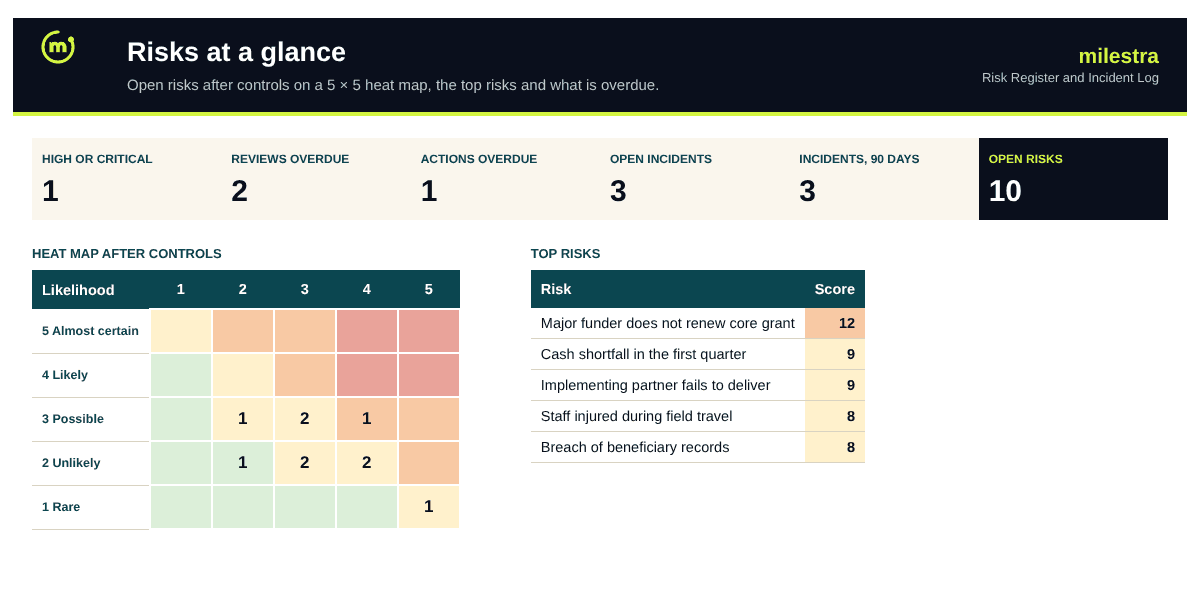
5×5 heat maps before and after controls
Review dates set by each risk's rating
Overdue reviews and actions flagged
Incidents linked back to risks
Free · Opens in Excel and Google Sheets · Sent to your inbox
What's inside
Sheet
What it does
Dashboard
Open, high and critical risks, overdue reviews and actions, open incidents, two heat maps, the top risks, risks by category and the latest incidents.
Risks
Risk, category, owner, likelihood and impact before and after controls, response, action and review dates; scores, ratings, alerts and incident counts are calculated.
Incidents
Date, incident, linked risk, severity, actions and follow-up; days open and status are calculated.
Settings
Rating bands, review intervals, the likelihood and impact scales, and categories.
Start here
How to score risks and bring the register to a board meeting.
How to use it well
Write risks as cause and effect. 'Major funder does not renew, so we cut two programmes' is easier to act on than 'funding'.
Score before controls first. Likelihood and impact from 1 to 5, as if nothing were in place. This shows what your controls are worth.
List the controls you actually have. Then score again. The residual score is the one the dashboard and heat map track.
Give every risk one owner. The person who would notice first and can act, not the whole board.
Log incidents against risks. A risk with several incidents is more likely than its score says. Rescore it.
Review at every board meeting. Start with critical and high risks, then overdue reviews and actions, then new incidents.
Skip the spreadsheet
Keep risks next to the goals they threaten
In Milestra, risks sit on the goals and grants they affect. Owners get review reminders, incidents raise follow-ups, and board packs show the current picture without anyone copying cells. Free for up to 5 people, and nonprofits get 50% off paid plans.
Score is likelihood × impact, from 1 to 25. By default 1–4 is Low, 5–9 Medium, 10–15 High and 16–25 Critical. You can change the bands on Settings.
How often should each risk be reviewed?+
By default every 30 days for High and Critical risks, 90 days for Medium and 180 days for Low, counted from the last review date. Change the intervals on Settings.
What is the difference between inherent and residual risk?+
Inherent is the risk with no controls in place. Residual is what is left after your controls. A big gap shows a control the organisation depends on, which is worth protecting.
Should incidents change a risk's score?+
Often, yes. Each risk shows how many incidents are linked to it. If a risk scored as unlikely keeps happening, raise its likelihood at the next review.
Can I use it for safeguarding?+
You can record safeguarding as a risk category and track its controls. Do not log personal details of safeguarding cases here; follow your safeguarding policy for case records.
Does it work in Google Sheets?+
Yes. Upload the .xlsx file to Google Drive and open it with Google Sheets. Formulas, dropdowns, colours and progress bars carry over. It also works in Excel 2019 or later and Microsoft 365.
Is it really free?+
Yes. Enter your email and we send the file straight to your inbox. Use it and share it inside your organisation as often as you like.