Free year-end close checklist: every task to close the year, with dates that set themselves
Closing the financial year touches finance, grants, payroll, the board and next year's plan, and the tasks that get missed are the ones nobody owned. This checklist lists 40 of them with the reason each matters, sets every due date from your year-end date, and shows progress by area on one dashboard.
Excel · 4 sheets
Year-end close checklist
40 year-end tasks across finance, grants, people, compliance and planning, with dates set from your year end.
40 tasks in six areas, each with why it matters
Due dates move with your year-end date
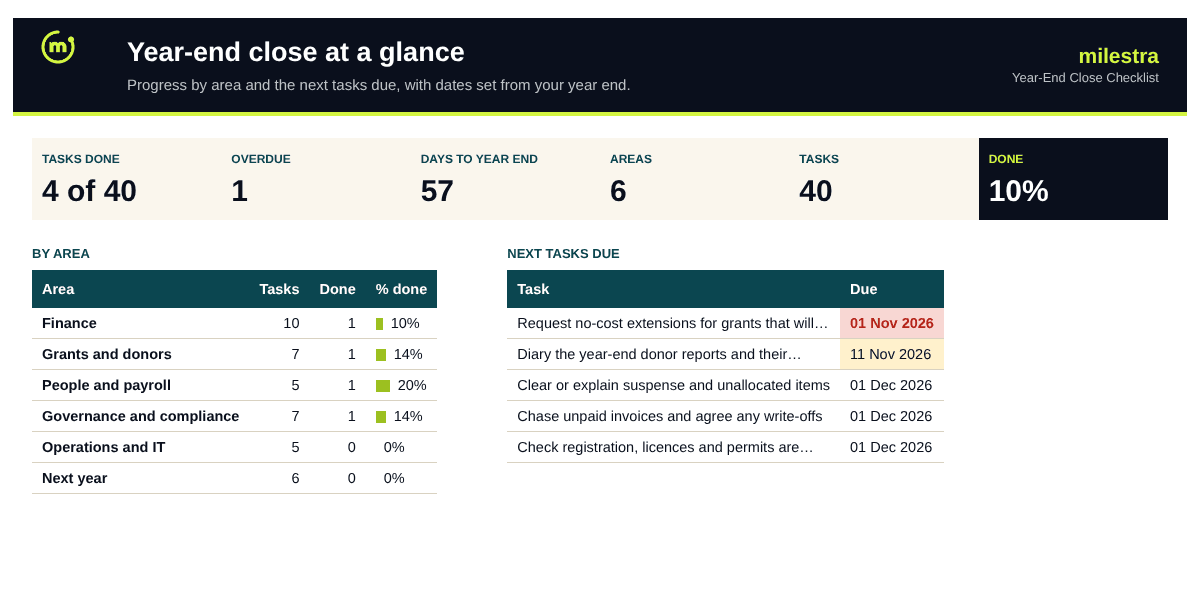
Overdue and due-soon alerts
Progress by area and by owner
Free · Opens in Excel and Google Sheets · Sent to your inbox
What's inside
Sheet
What it does
Dashboard
% done, tasks done, overdue and days to year end; progress by area; open tasks by owner; the next 12 tasks due.
Checklist
40 tasks with area, guidance, owner, days from year end, status, done date and evidence; due date and alert are calculated.
Settings
Organisation name, financial year end and the six areas.
Start here
How to set it up and run it in the weeks around year end.
How to use it well
Set your year-end date. Every due date is worked out from it, so a June year end works as well as December.
Cut what doesn't apply. Mark tasks 'Not needed' rather than deleting them, so next year's list stays complete.
Give every task an owner. Tasks owned by 'finance' slip; tasks owned by a named person get done.
Start eight weeks before the year end. Half the tasks are due before the books close, from reconciliations to the auditor's booking.
Record where the evidence is filed. When the auditor asks, the answer is already in the sheet.
Review it weekly. Start with what's overdue, then what's due in the next 14 days.
Skip the spreadsheet
Close the year with your results in one place
In Milestra your goals, grants and reports sit together all year, so the year-end report and next year's plan start from live numbers rather than a scramble through spreadsheets. Free for up to 5 people, and nonprofits get 50% off paid plans.
Each task has 'days from year end': minus for before, plus for after. The due date is your year-end date plus those days, so changing the year end on Settings moves every date.
Does it work for a year end other than 31 December?+
Yes. Enter any date, for example 30 June or 31 March, and every due date follows.
Can I add my own tasks?+
Yes. Add them at the bottom of the list with an area, owner and days from year end. The sheet holds 150 tasks.
What does 'Not needed' do?+
It greys out and strikes through the task and leaves it out of every count, so progress reflects only the work that applies to you.
Is this the same as audit preparation?+
It overlaps. This covers the whole close; the audit-prep checklist goes deeper on the documents an auditor or donor will ask for.
Does it work in Google Sheets?+
Yes. Upload the .xlsx file to Google Drive and open it with Google Sheets. Formulas, dropdowns, colours and progress bars carry over. It also works in Excel 2019 or later and Microsoft 365.
Is it really free?+
Yes. Enter your email and we send the file straight to your inbox. Use it and share it inside your organisation as often as you like.